Watch a recording
When a class has been recorded and your instructor has published it, you can watch it back on the platform.
Find the recording
Section titled “Find the recording”On the website, open Live sessions, choose Past, and select the class. In the mobile app, open Schedule → Finished, then select the class.
If a recording is ready, the class page shows Watch recording.
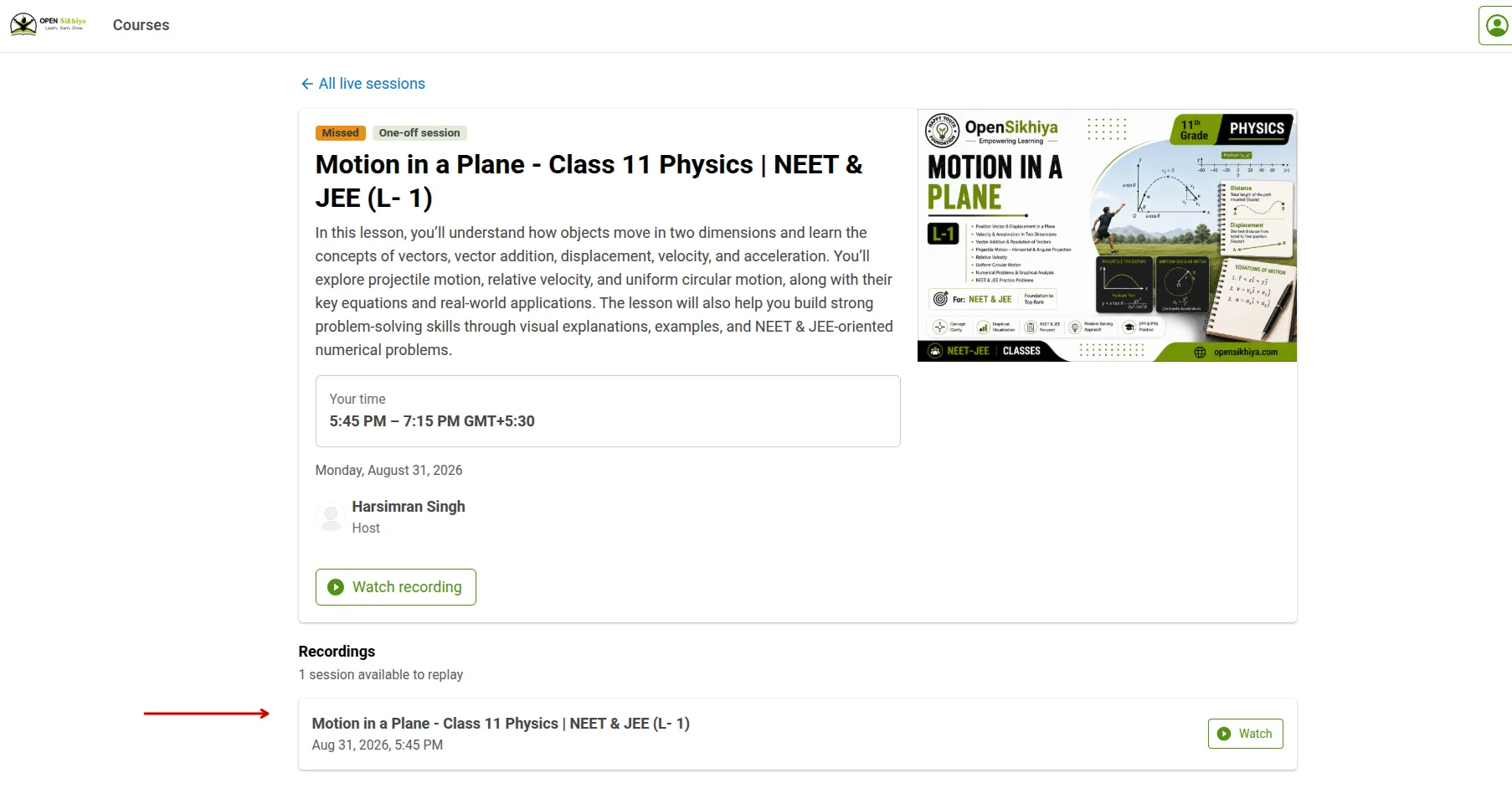
Below that, a Recordings section lists every session of the class you can replay, and tells you how many are available. Each one shows its title, its place in the series, the date it ran, and how long the recording is. Select Watch on any of them.
Watch it
Section titled “Watch it”The recording opens in the Open Sikhiya player with controls for play, pause, volume, position and fullscreen. On a phone, it plays fullscreen.
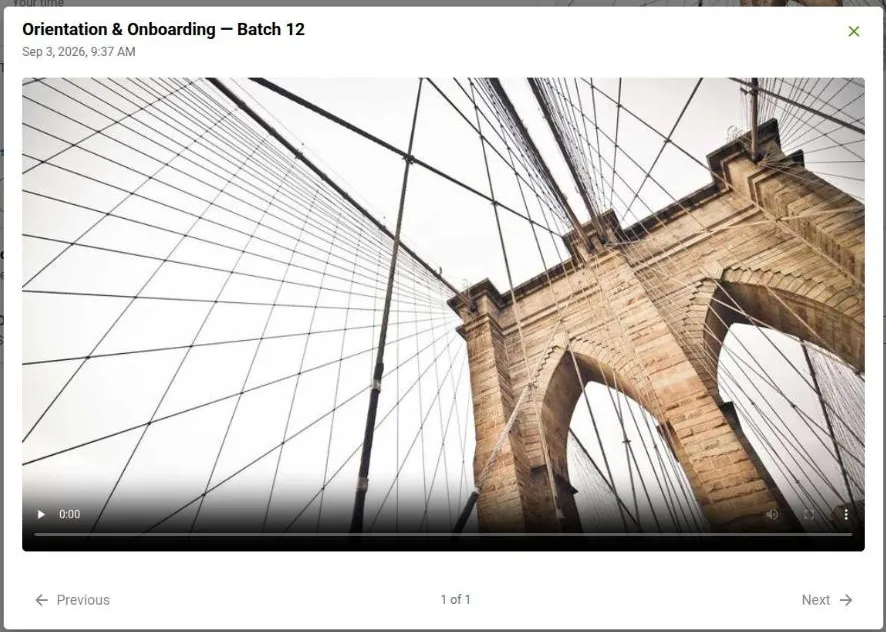
For a class that ran several times, Previous and Next at the bottom move between sessions without closing the player, and a counter shows where you are in the list.
Close the player to go back to the class page.
Things worth knowing
Section titled “Things worth knowing”Watch recordings in Open Sikhiya. A recording link works only for an authorized learner who is signed in. Copying or sharing the video address does not give someone else access.
Recordings do not have captions.
Not every class has one. A recording is available only if your instructor publishes it, and only until it expires. Where there is none, the class page says Recording not available.