Reports and recordings
Reports
Section titled “Reports”The Reports tab fills in once a class has run and Zoom has reported participation. For a recurring series you can look at the whole series or pick a single session with By session. Every table has Export CSV when you need the full data outside Studio.
Attendance
Section titled “Attendance”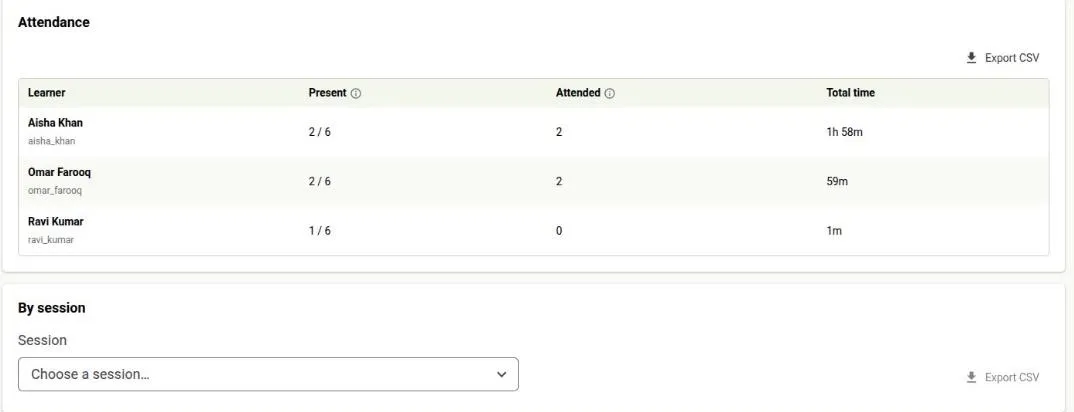
Attendance separates two things:
- Present — the learner joined at all, even briefly.
- Attended — the learner stayed for at least the configured attendance minimum.
A single session also shows when each learner joined and left.
Engagement
Section titled “Engagement”Engagement summarises participation across the series:
| Metric | Meaning |
|---|---|
| Total attendees | Distinct learners who met the attendance minimum in at least one session, counted once each |
| Avg. attendance | Attended learners divided by the expected audience |
| Avg. on time | Share of attended learners who first joined within five minutes of the start |
| Avg. watch ratio | Average time watched divided by how long the meeting actually ran |
Attendance percentage is not available for public classes — they have no fixed roster to measure against, so it shows as N/A.
Poll results appear after Zoom supplies them, with a summary per question and the individual responses. Anonymous responses cannot be linked back to a platform learner. A class that has not run yet says so rather than showing an empty table.
Recordings
Section titled “Recordings”The Recordings tab lists the cloud recording for each session, and is where you make one available to learners.
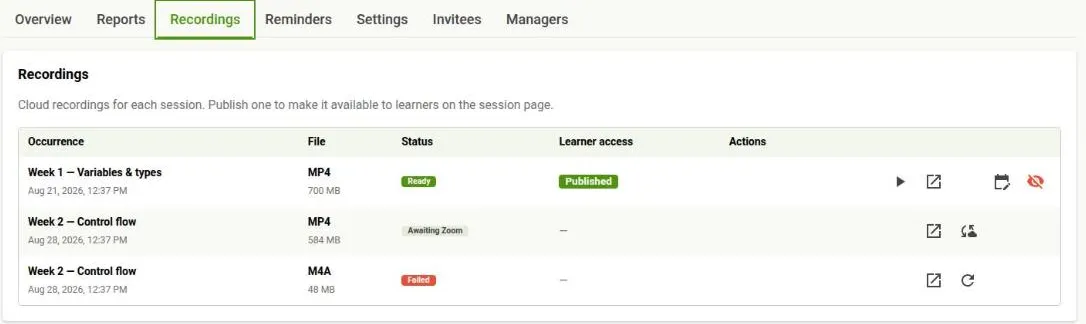
Recordings are grouped by class. While Zoom prepares a recording, the class shows a message in place of the recording details:
- Recording in progress — the class is still running.
- Zoom is preparing the recording — normal after a class ends; it appears here when ready.
- This recording is taking longer than usual to arrive — still expected, but you can check it in Zoom directly in the meantime.
- No recording was captured for this session — nothing was recorded.
Once the files arrive, each row shows the file, its Status and its Learner access. Status is one of:
- Awaiting Zoom — Zoom is still preparing the file.
- Processing — Open Sikhiya is preparing the recording for the library.
- Ready — the recording can be published.
- Failed — preparation did not finish; select Retry sync to try again.
- No recording — the class ended with nothing recorded.
A class with several files has one marked Primary; that is the one learners get.
Nothing is visible to learners until you act. Use Publish to learners to make a class’s primary recording available, and optionally set when access expires. A recording can only be published once it is Ready.
A published recording shows either Visible to learners, no expiry or the date it stops being visible; Edit learner access changes that later, and Unpublish hides it again without deleting the history.
Watch plays a recording in Studio, and Open in Zoom opens it at the source.
If Add recordings to the video library was selected when the class was created, the recording is added automatically. Otherwise, select Sync to library. If that does not finish, select Retry sync.
Recordings only appear after a session has run and Zoom has finished writing it to the cloud, so an empty tab right after a class is expected.